Paying by card
An API key can be paid by card the way an automatic top-up works: you pay a deposit once as a card subscription, and after that the card is charged every week for exactly what the key used. Card details are entered only on the LiqPay payment page; OmevAI never sees or stores them.
How it works
- Deposit. It is about one week of usage: your expected monthly spend divided by 4. You pay it once, by card, as a subscription in Billing of the usage cabinet. Usage is counted from this first payment.
- Weekly charge. Every week the card is charged for 100% of the actual usage since the previous charge, so the balance returns to the deposit. The amount is fixed one day before the charge and is shown in advance in the Next charge tile.
- Allowed negative balance. Between two charges each key may go below zero down to its own limit. At the limit the key stops until a payment arrives, so spending cannot run away.
- One e-mail. When the balance comes close to the limit, you receive one e-mail with a button to pay the current amount right away.
- Cancel any time. Future charges stop; payments already made, the balance and the usage history stay.
Deposit = monthly spend ÷ 4. Weekly charge = actual usage since the previous charge.
| Example | |
|---|---|
| Expected spend | $2,000 a month |
| Deposit, the first payment | $2,000 ÷ 4 = $500 |
| Allowed negative balance | −$100, so up to $600 of usage between two charges |
| E-mail with a pay button | at −$80 |
| Weekly charge | the week's actual usage, for example $430 |
The exact amounts for each key are set by OmevAI and shown in Billing.
Step by step
1. Sign in
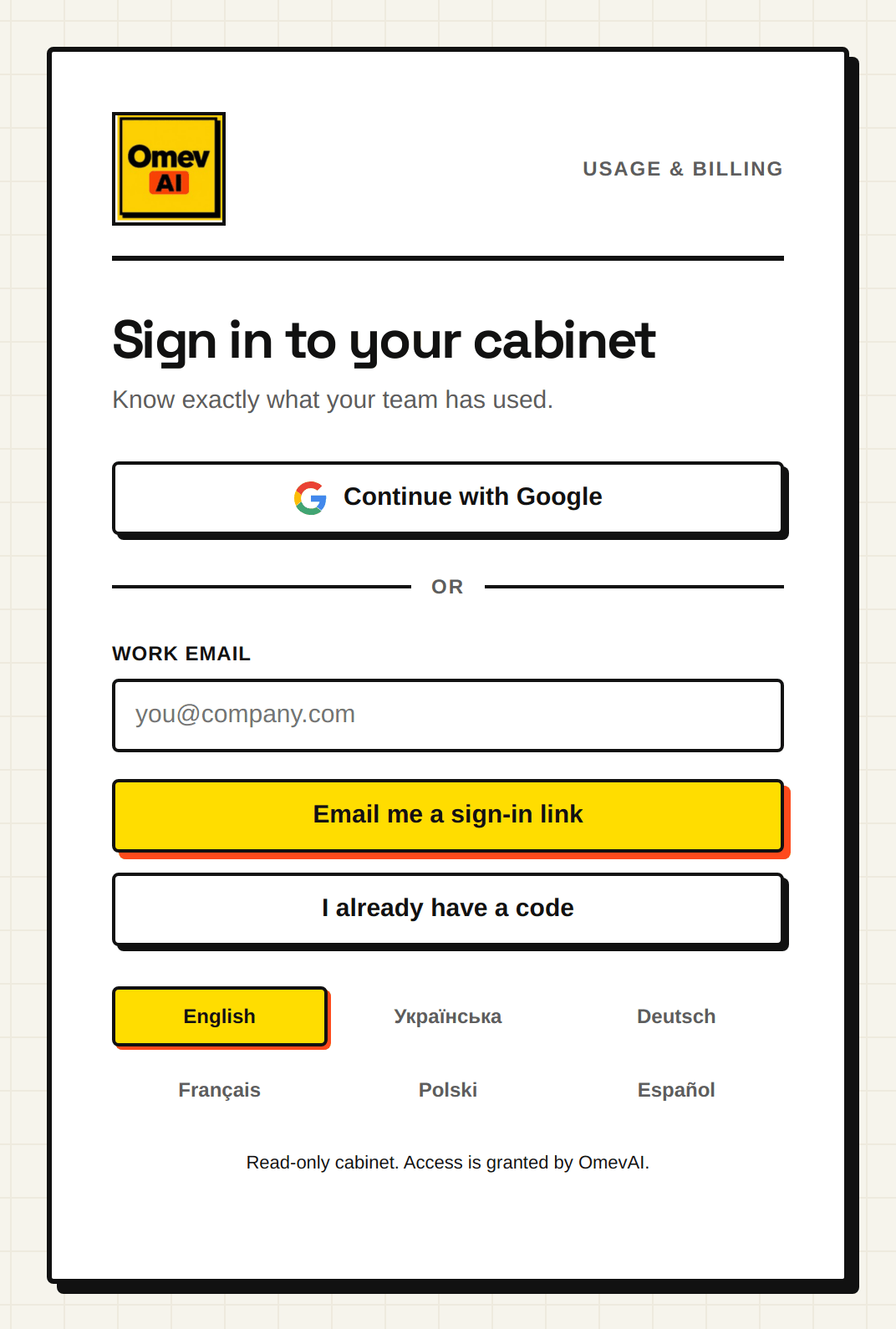
Open usage.omev.be. Select Continue with Google, or enter your work e-mail and select Email me a sign-in link, then follow the link in the e-mail (or select I already have a code and enter the code from it). To subscribe and pay you need the Owner or Finance role in your organisation.
2. Open Billing
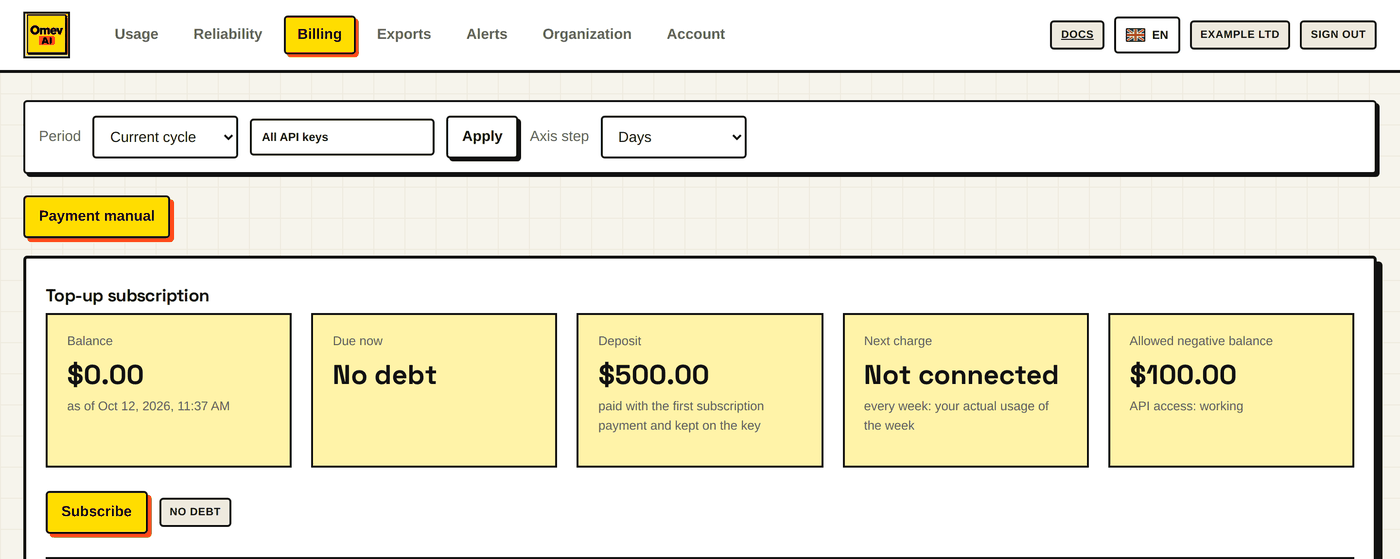
Select Billing. At the top of the tab are the yellow Payment manual button, which opens this page in the cabinet's language, and the Top-up subscription block with the key's Balance, the amount Due now, the Deposit, the Next charge and the Allowed negative balance. If the organisation has several keys with a subscription, choose the key in the API key field first.
3. Subscribe
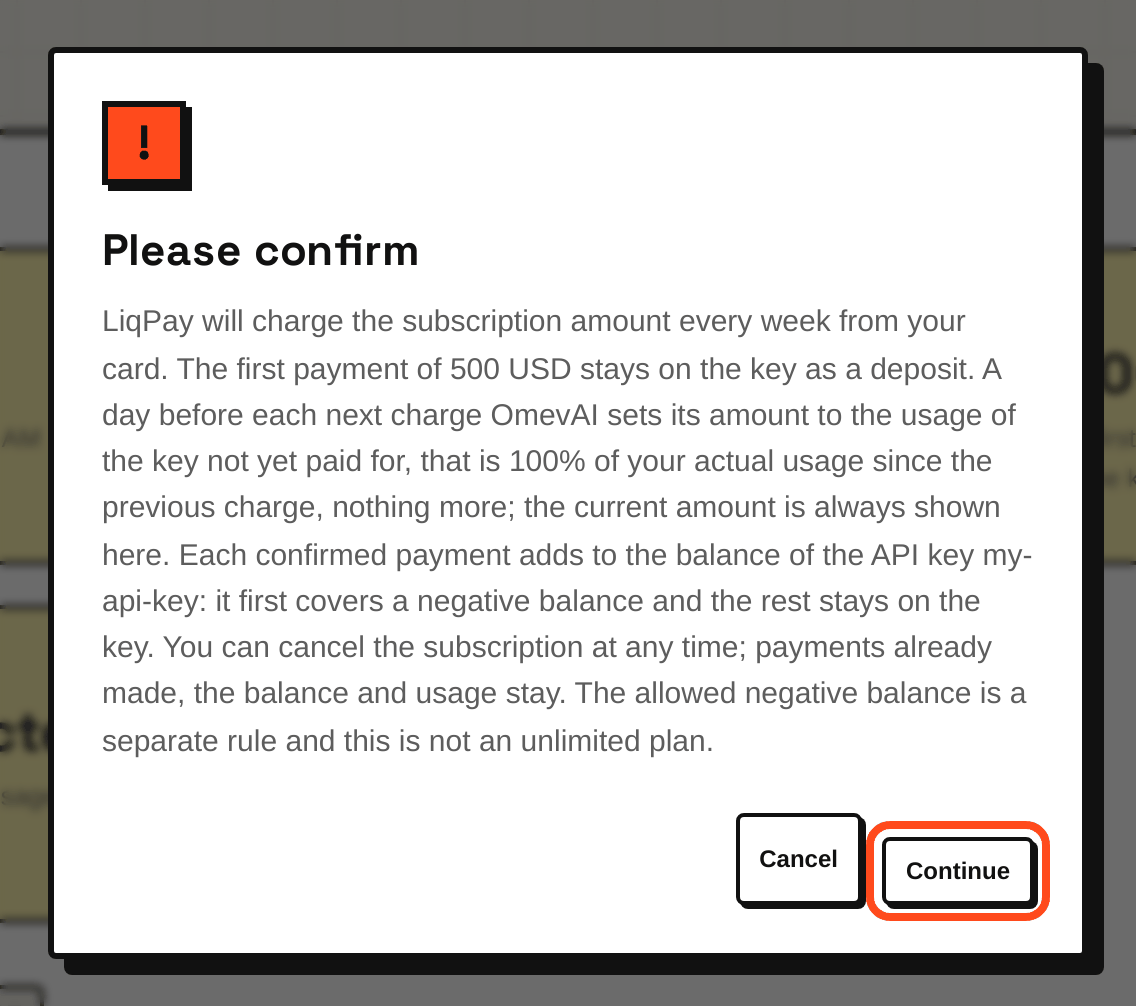
Select Subscribe. The Please confirm window repeats the terms: the first payment stays on the key as a deposit, each next charge is 100% of your actual usage since the previous one, and you can cancel at any time. Select Continue to go to LiqPay.
4. Pay on the LiqPay page
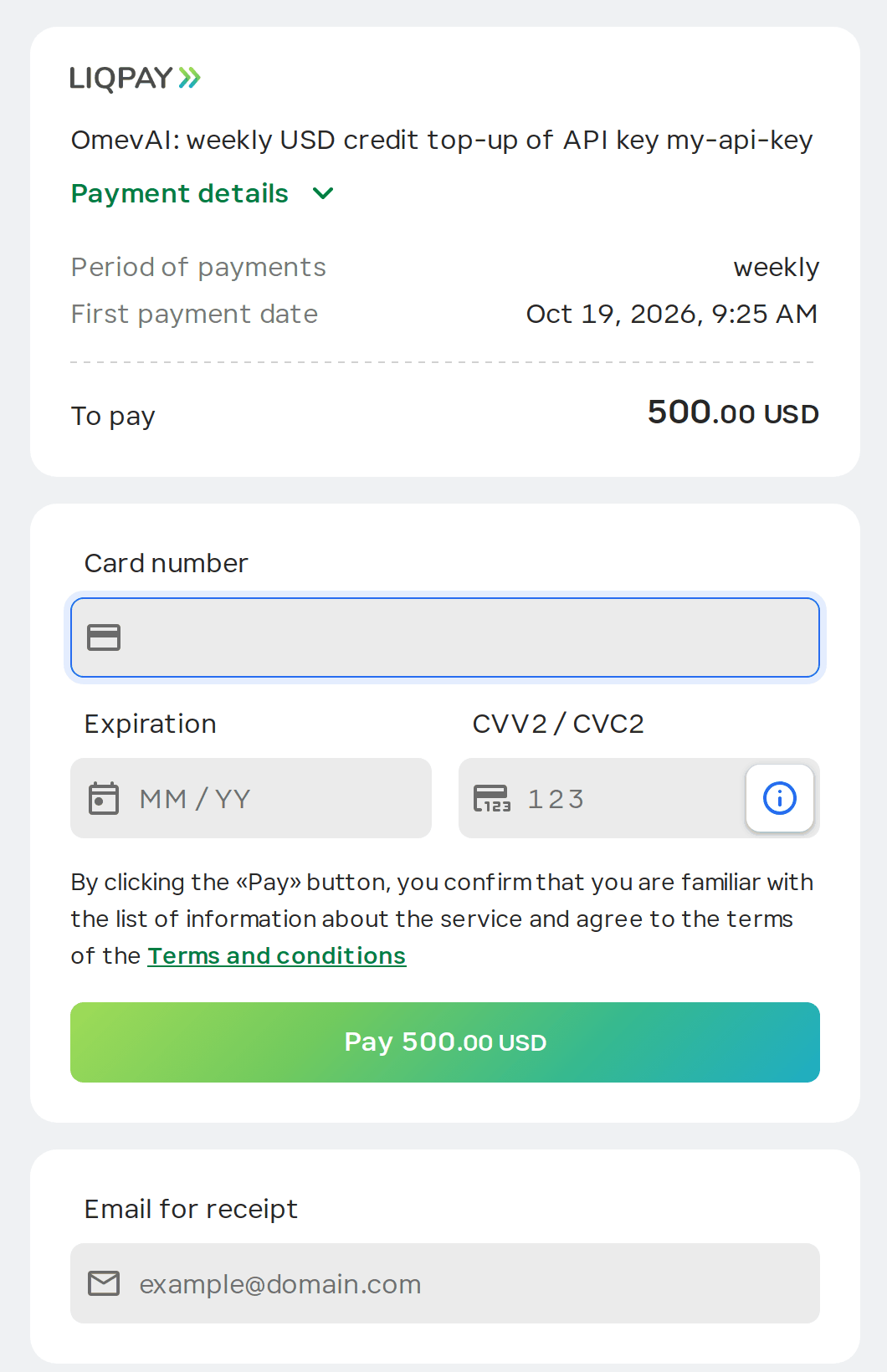
The LiqPay payment page shows a weekly subscription with the first payment, the deposit, due now. Enter the card details there and confirm the payment; your bank may ask for an extra confirmation.
5. After the first payment
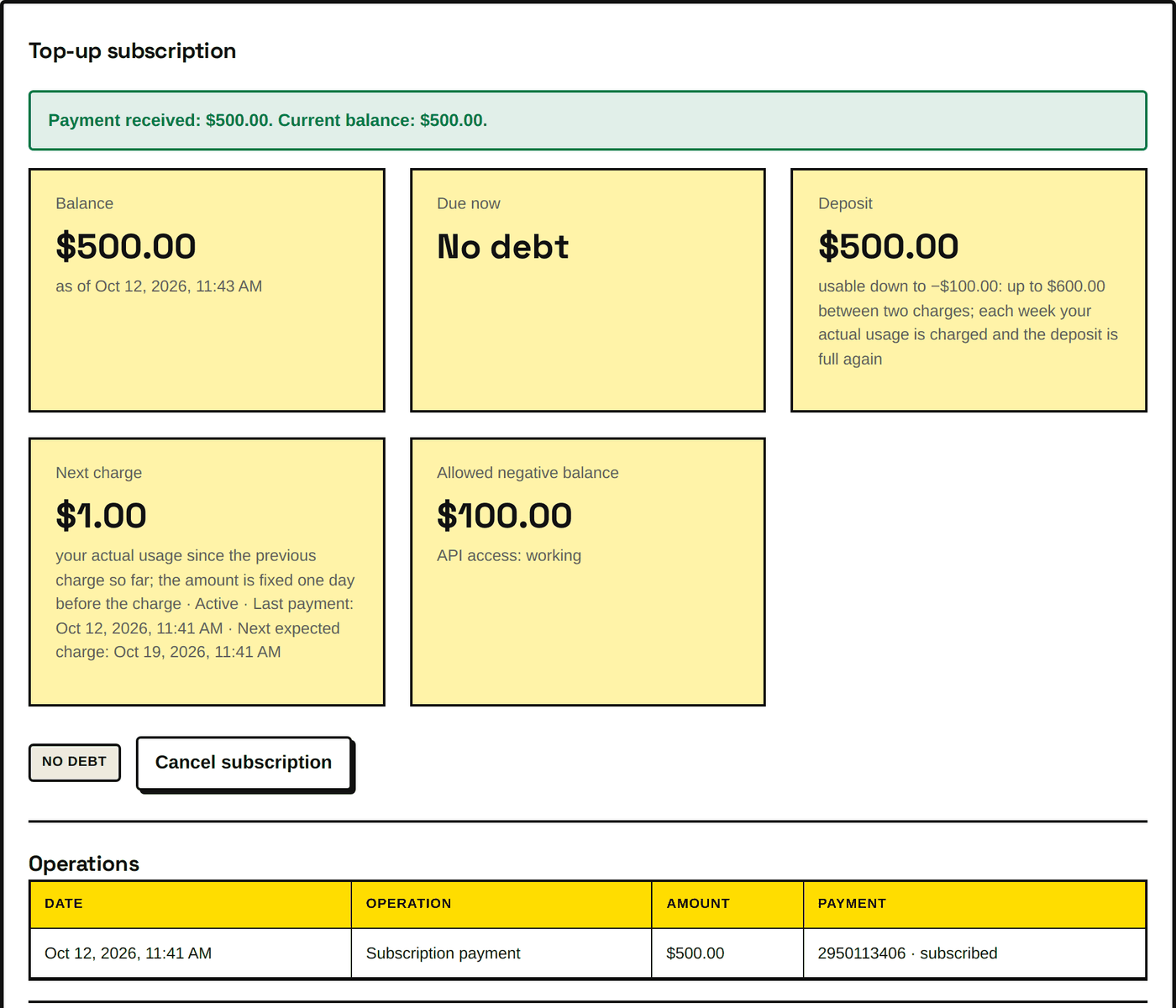
Back in Billing, the cabinet shows Payment received with the new balance. The deposit is on the balance, the Next charge tile shows the subscription as Active with the date of the next expected charge, and the key shows API access: working. While LiqPay is still confirming the payment, the cabinet shows Waiting for the payment confirmation from LiqPay…; the balance updates by itself.
6. Weekly charges
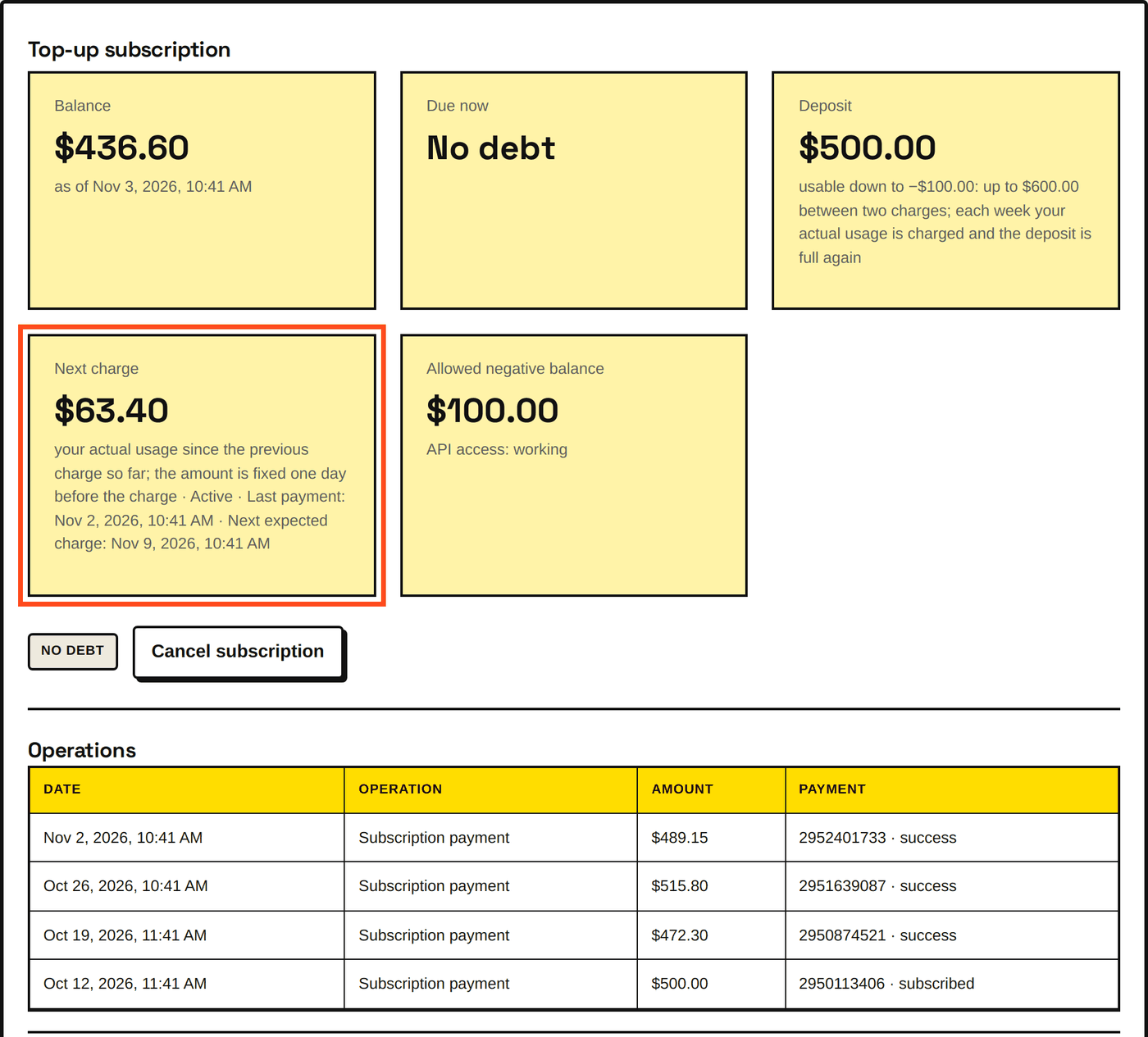
LiqPay charges the card every week by itself. Each charge appears in Operations as a Subscription payment and equals the usage of its week; the Monthly statement sums up the month. Between charges, Next charge shows the usage not yet paid for; the amount is fixed one day before the charge.
7. The e-mail near the limit
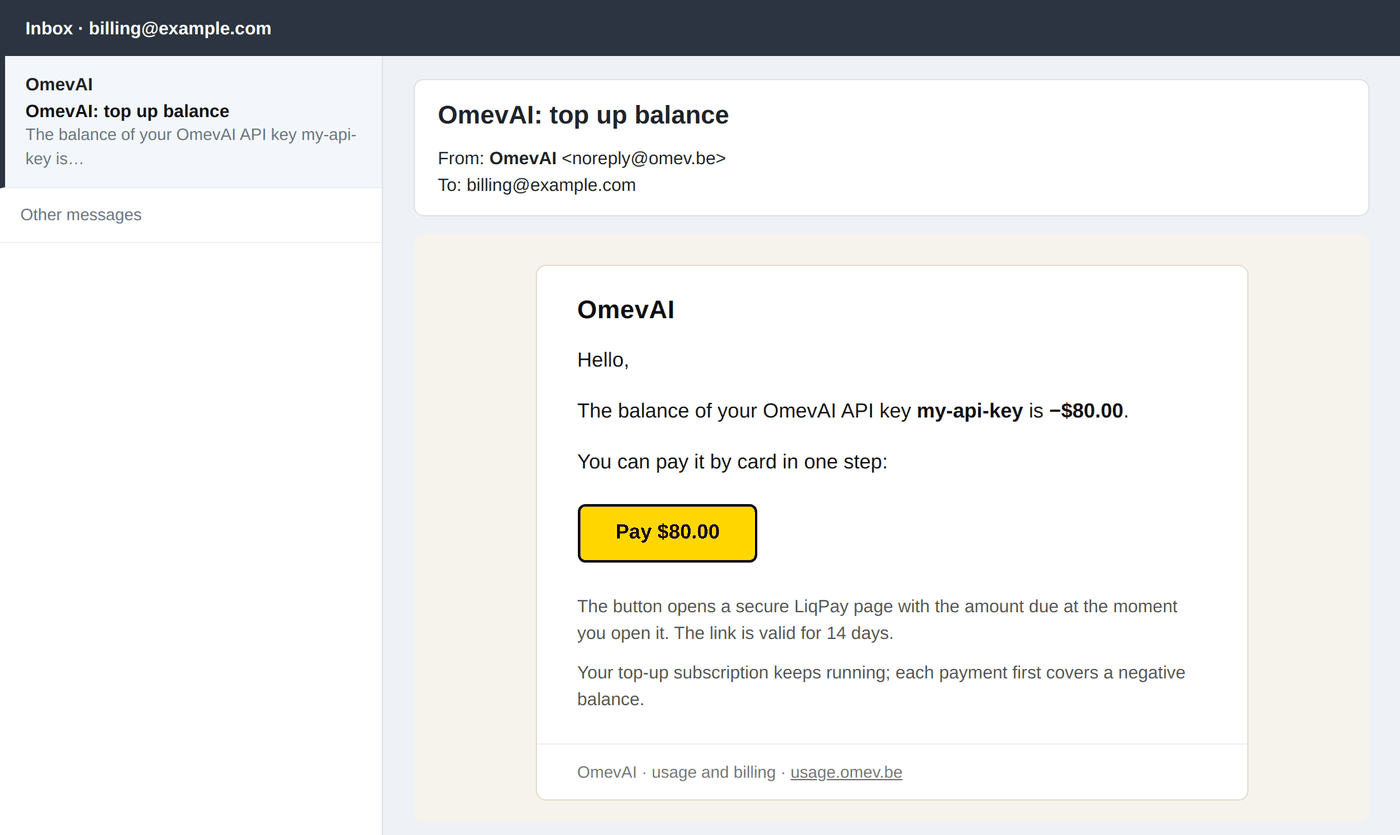
When the balance comes close to the allowed negative, OmevAI sends one e-mail with the subject OmevAI: top up balance and a Pay button with the amount. The button opens a secure LiqPay page with the amount due at that moment; the link is valid for 14 days. Add noreply@omev.be to your contacts so that the e-mail does not land in spam.
8. Paying a negative balance
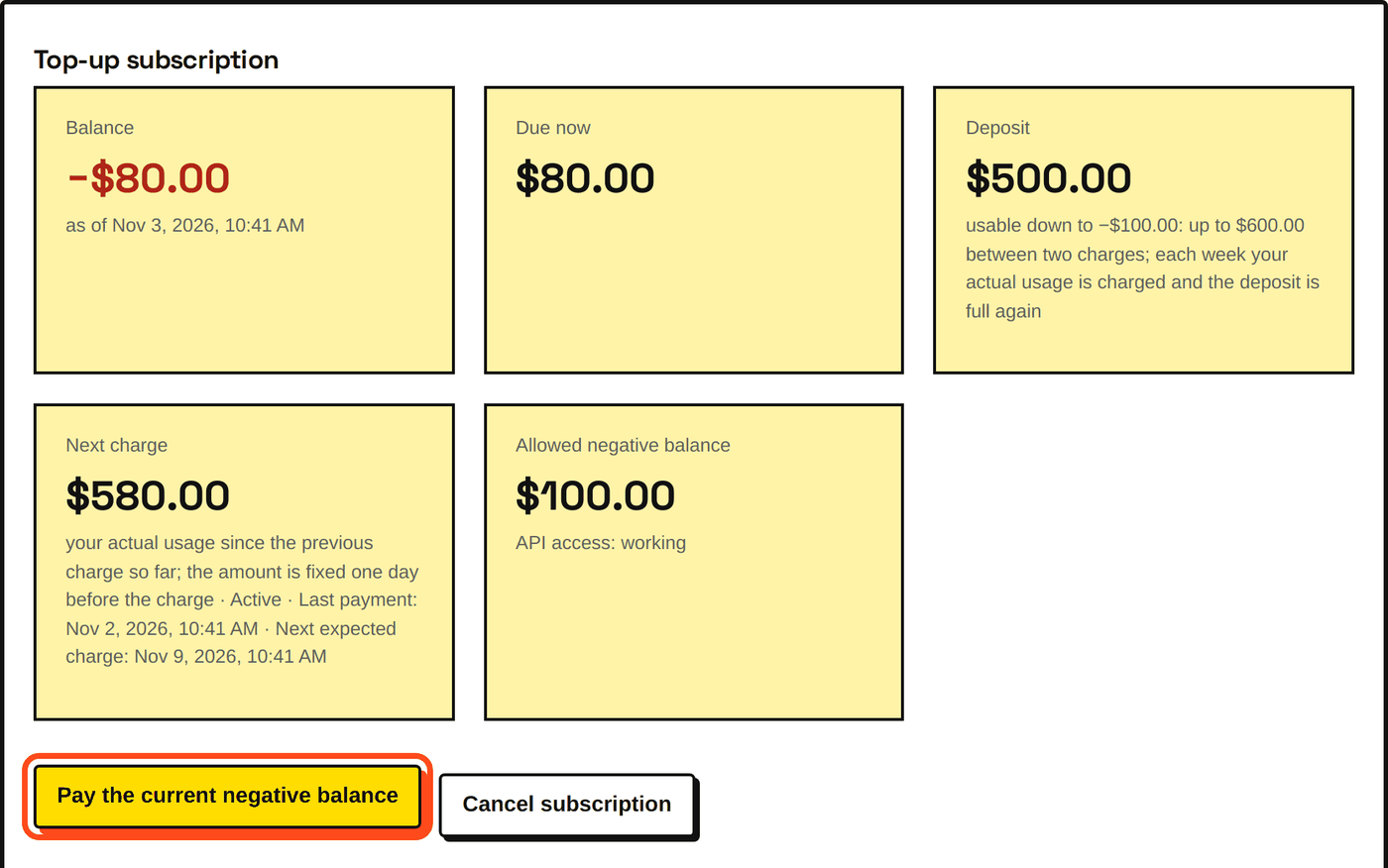
When the key is below zero, Billing shows the amount Due now and the Pay the current negative balance button: one card payment covers it. If the key has reached its limit, it shows API access: limit reached until a payment, and access returns as soon as the payment is confirmed.
Questions
What happens at the limit? The key stops answering until a payment arrives. Pay the current amount with the button in Billing or in the e-mail; access returns by itself.
What if a weekly charge fails? The usage stays on the balance and is included in the next charge. You can pay the current amount yourself at any time.
Can the deposit or the limit be changed? Yes. Write to support@omev.be; OmevAI sets the amounts for each key.
Billing says the subscription is not available for this API key. The deposit and the limit are set up for a key by OmevAI first. Select another key or write to support.
I do not see the Subscribe button. Your role allows viewing billing only. Ask the organisation owner or a finance role to subscribe.
How do I cancel? Select Cancel subscription in Billing. Future charges stop; payments already made, the balance and the usage history stay. A negative balance remains due.
Several keys? Each key has its own subscription, deposit and limit. Billing also shows the total due for all keys.
Is there a PDF version? Yes:
OmevAI payment manual, PDF. It also
exists in Ukrainian and Russian (OmevAI_Payment_Manual_uk.pdf, OmevAI_Payment_Manual_ru.pdf
in the same folder).